Week 7: User Interface Visual Design Patterns

User interface is all about layout, visual design and branding. Great UI should include aesthetics and effortless activity for the user, making their experience a memorable outcome. The user experience is what viewers interact with to make their experience for the site/app, when designing UX you need to think about positive outcomes for audiences and having to enjoy it. How the components of UI are used, affects the outcome of the user experience and how they feel when using it.

Common navigation patterns:

  • Tabs
    • Navigation Tabs
    • Module tabs
  • Menus
    • Horizontal Dropdown Menu
    • Vertical Dropdown Menu
    • Accordion Menu
  • Jumping in hierarchy
    • Shortcut dropdown
    • Fat footer
    • Home link
    • Breadcrumbs

  • Content
    • Carousel
    • Event calendar
    • Article list

Tabs is the most common navigation pattern used, they come from the inspiration of tabs in filing cabinets. Tabs are used when sectioning off content and be navigation to clearly state what section the user is in at the time (flat navigation structure). You would use the flat navigation structure when section titles are short and when you want the navigation to fill the page, when you want to reveal the highest available sections and even subsections.

Dropdown menus are used when the user navigates through a site when the space of the page is limited. These are used to save space and organising information into sections, more specifically subsections. You would usually use a drop down menu when there are 2-9 sections of content that need a hierarchical navigation structure. These allow quick access and space saving. Footers are also used when users are finding a specific section of the site or application, but also bypass the navigation at the top of the screen.
Week 6: Scenarios

User scenarios are sample stories that our created personas act out. They are usually exercises that are represented visually and suit the personality and bio of user personas. Scenarios are how designers predict how different personas interact with their website/app in situations in order to complete a given task. This gives an insight to future users of how they can complete goals when using the site/app. Scenarios also test out your interactive structure before it comes out and allow you to come up with solutions for problems that may arise.

User scenarios should state:

  • Who
  • What
  • Where
  • When
  • Why
  • How

Scenarios include information about:

  • Goals
  • Expectations
  • Motivations
  • Actions
  • Reactions

They are designed to be attempts to reflect on or represent a specific way in how a system would be used in a certain point in time of an activity. Think about each persona’s typical daily activities, the problems they usually encounter, as well as questions they ask often. Once the persona, context and issues are understood by the designer, they then begin to develop elements of the actual design. Scenarios are important for this process as it helps the designer add specific functions that would satisfy the persona, how they will use it and what needs to be prioritised on the interface.

Week 5: Personas

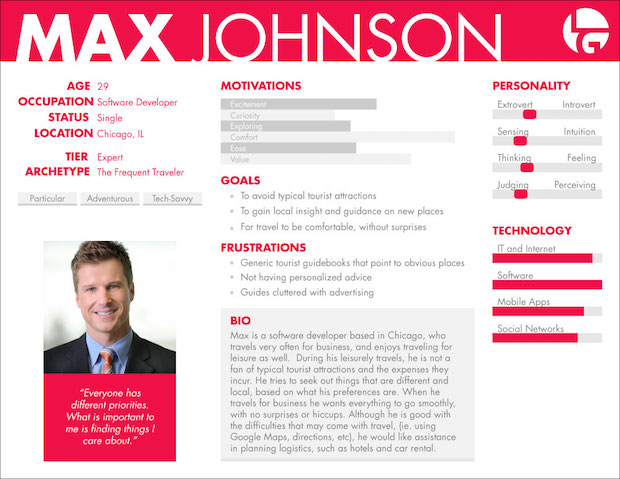
User personas have been integrated with user experience documentation just before the 2000s. These are fictional users that represent of real users that add up to the process to show the design and the user experience. A user persona is an example of what goals and behaviours of an idea of users that will use our project. Creating personas include information such as personalities, behaviour, skills and goals that can be taken from interviews and surveys. Making a persona is mainly fictional but should be realistic to what the designer aims to be their target audience and also be their “average user”. Usually more than one persona is created for a project, but there should be one that is mainly focused on for the design.

User Personas could include:

  • Age
  • Sex
  • Occupation
  • Hobbies
  • likes/dislikes
  • Other details germane to the product such as
    • Behaviour patterns
    • Goals
    • Skills
    • Attitudes
    • Their environment
  • Personalities

Coming to conclusions on each of these details should confirm the mindset, desires of the users. It is up to the designer to describe each of their user personas and decide any other important information that could assist their project. Personas give a clear vision in mind to the designer and audience of what the aims of project is to be made. Reviewing user personas before creating wire-framing is very important, so that every choice the designer makes they have this to refer to and make sure they’re on the right track. As well as checking these after your wireframes to make sure you are meeting their goals.

Image result for personas samples
Sample Persona

When designing personas you could consider large & small audiences. When choosing your core audience when creating your personas you can still cover a large portion of your users. The aim is to keep satisfying the core audience. When you have a smaller audience it means you know a lot more about their goals and be more specific with user personas. We need to ask ourselves, “What are the tasks your users are trying to perform?” when defining personas.

Think about the devices your users will be using such as computer, mobile phone or tablet and if the project will be made to cross all of these platforms. Mobile would most likely be the top choice for users in the younger generations, while the elderly don’t use these as much. When it comes to your project it is also important to know whether users will be just exploring your site/application or looking for specific sections. Designing your user experience should be followed by how your personas are like, putting specific content at the first page that they see or first pop up they view or even putting that content in areas where they would have to look for it themselves through navigation. If you have a large audience, you could use architecture fundamentals for websites, so they would have to browse and search through it all.

References:

How to Create a Concrete Buyer Persona. [Image] (2019, January 19) Retrieved from https://optinmonster.com/how-to-create-a-concrete-buyer-persona-with-templates-examples/

Week 4: Instructional Design

Everyday we interact with instructions such as loading an Opal card, ordering food, how to turn on devices and putting IKEA furniture together.

IKEA instructions

We interact with these by following an amount of steps that we eventually get used to, but learning how to do these begin with instructions. We find a lot of visual instructions around the workplace, classroom and public places like bathrooms. A lot of these vary in images and text for example, we may see a simplistic illustration and very few words on instructions dedicated to a younger audience, as they learn faster and remember better by looking at visuals of what they’re supposed to do. There are some instructions that are diagrams which separates the image to the text instruction, which the viewer would have to match up themselves. Furthermore, diagrams follow the law of proximity, which is the placement of things put near each other are being perceived by the viewers as being closely related.  

Photographic images used as instructions aren’t always the best, as there are multiple focus points where the viewer could believe is the actual step they need to do which may not always be correct. By creating an illustrated and simplified visual instructions makes it easier to use as you can use a limited palette and signals such as arrows to know what action is needed to complete the step.

Alberto Cairo believes that there are 4 types of interactive experiences on a screen based experience:

  • Instructions – pressing buttons to reveal steps
  • Conversation – back and forth dialogue
  • Manipulation – moving items around the screen to change the structure of the appearance of what is in front of them
  • Exploration – games/playful/engaging to the viewer to keep them interested

There are challenges and limits of working with screens for interactives:

  • Limited screen area
  • Limited resolutions

But there are also opportunities for these:

  • Time
  • Layering

References:

Petit, N. (2012). User’s Guide [Photograph]. Retrieved from https://chillingcompetition.com/2012/05/09/